Table of Contents
Forgetting your Wi-Fi password can be frustrating—especially when your laptop is already connected, but you want to connect a new phone or device. Many people think the only solution is to reset the router, but that can disconnect all devices and waste time.
In this practical guide, you'll learn two safe and simple methods to view a saved Wi-Fi password on a Windows computer without resetting your router.
Why This Method Is Important
- Avoids unnecessary router resets – Keep all devices connected
- Saves time reconnecting devices – No need to reconfigure all your gadgets
- Uses built-in Windows tools – No third-party software required
- Perfect for home and office users – Safe and reliable methods
Method 1: Show Wi-Fi Password Using Command Prompt (CMD)
Step 1: Open Command Prompt as Administrator
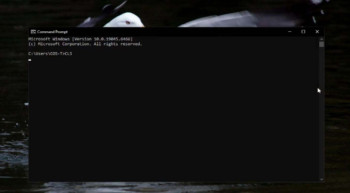
Win + X and select "Windows Terminal (Admin)" or "Command Prompt (Admin)"
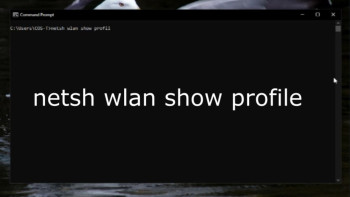
Step 2: Display Saved Wi-Fi Profiles
Type the following command to see all saved Wi-Fi networks:
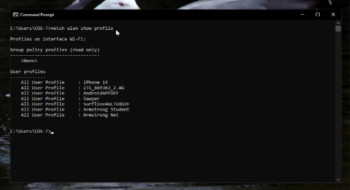
Step 3: Show the Wi-Fi Password
Replace "WiFiName" with your actual Wi-Fi network name:


Method 2: Show Wi-Fi Password Using NCPA.CPL
Step 1: Open Network Connections
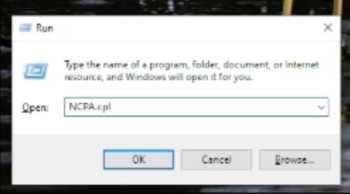
Press Win + R to open the Run dialog, type ncpa.cpl, and press Enter:
Step 2: Open Wi-Fi Status
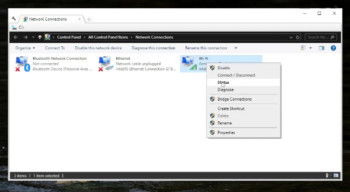
Right-click your Wi-Fi connection and select "Status":
Step 3: Show the Password
Click "Wireless Properties" → "Security" tab → Check "Show characters":


Connect Your Phone
- Open Wi-Fi settings on your phone
- Select the Wi-Fi network you want to connect to
- Enter the password you retrieved using either method above
- Connect instantly without disrupting other devices
This tutorial is provided strictly for educational purposes. Only use these methods on networks you own or are authorized to access. Unauthorized access to networks is illegal and unethical.
Conclusion
Knowing how to retrieve your Wi-Fi password is an essential digital skill. It helps you manage your home or office network efficiently without unnecessary disruptions. Both methods shown above are built into Windows and provide a safe way to access your saved passwords.
Visit Armstrong IT Training & Software Hub for hands-on training in networking, computer basics, and software skills. Our courses are designed to give you practical skills you can use immediately.