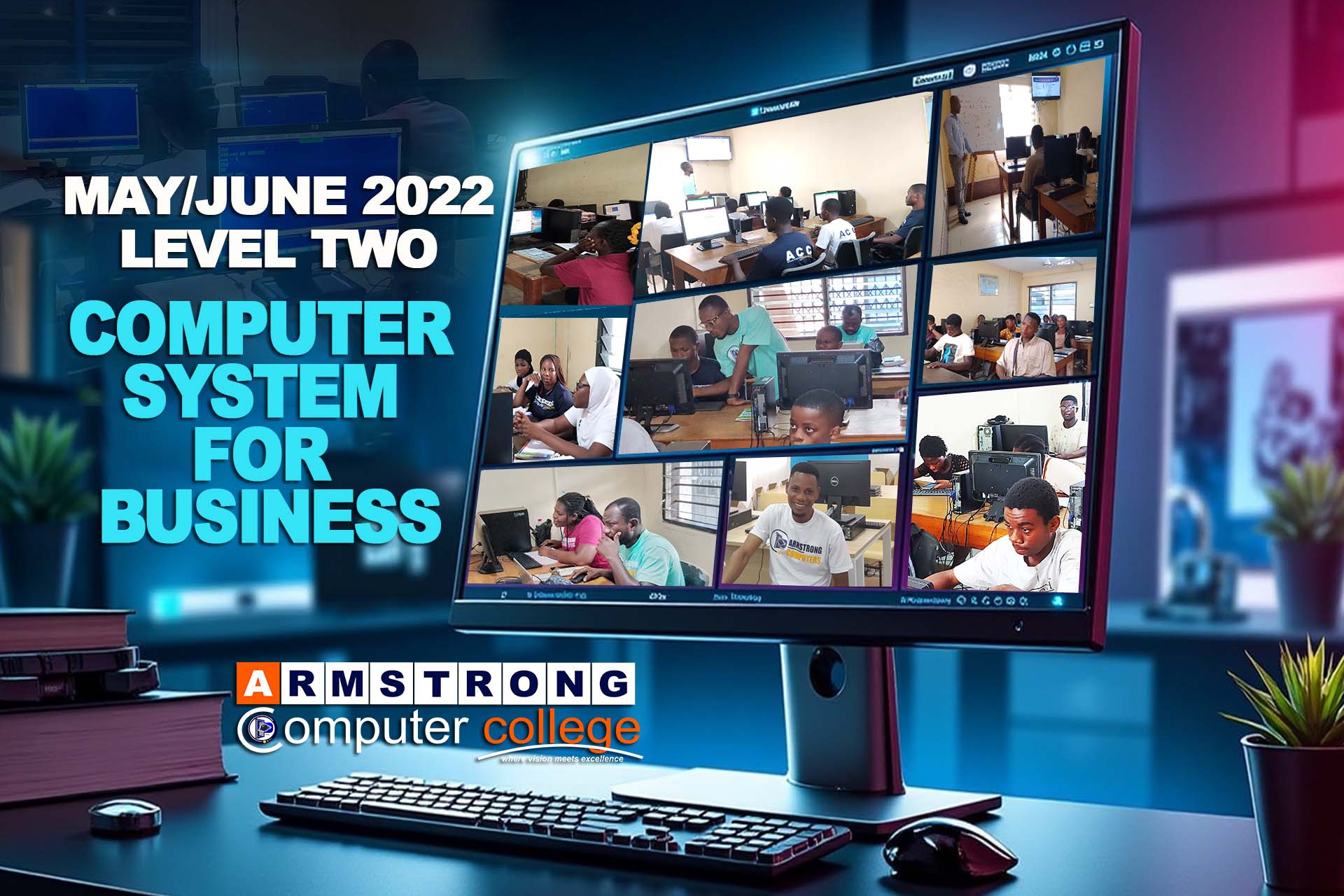
This guide provides detailed explanations for the May/June 2022 Level Two Computer Systems for Business examination questions. Use this resource to better understand the concepts and prepare effectively for your exams.
SECTION A (50 MARKS)
1. Define hardware and software
Hardware refers to the physical components of a computer system that you can see and touch. Examples include the monitor, keyboard, mouse, motherboard, CPU, and hard drive.
Software refers to the programs and operating systems that run on computer hardware. Software provides instructions that tell the hardware what to do. Examples include Microsoft Word, Windows OS, and web browsers.
2. What is the difference between a ROM and a RAM
ROM (Read Only Memory):
- Non-volatile (retains data when power is off)
- Used to store permanent data like firmware
- Data can only be read, not normally modified
- Slower than RAM
- Used for booting the computer
RAM (Random Access Memory):
- Volatile (loses data when power is off)
- Used to store temporary data for active programs
- Data can be both read and written
- Faster than ROM
- Used for running applications
3. What are the various components of a motherboard
The main components of a motherboard include:
- CPU Socket: Holds the processor
- RAM Slots: For memory modules
- Chipset: Manages data flow between components
- BIOS/UEFI Chip: Contains firmware for booting
- Expansion Slots (PCI, PCIe): For add-on cards like graphics cards
- Storage Connectors (SATA, M.2): For hard drives and SSDs
- Power Connectors: To receive power from PSU
- I/O Ports: USB, audio, Ethernet, etc.
- Clock Generator: Controls system timing
- CMOS Battery: Powers the BIOS memory
- Heat Sinks: For cooling components
4. a. Write the following acronyms in full
i. USB: Universal Serial Bus
ii. WYSIWYG: What You See Is What You Get
b. What is data backup
Data backup refers to the process of making copies of important data to protect against accidental loss, corruption, or disasters. Backups allow for data recovery in case the original data is compromised. Backup methods include full backups (copying all data), incremental backups (only changed files since last backup), and differential backups (all changes since last full backup).
5. Identify the basic file-processing activities to do these octal additions
The basic file-processing activities needed for octal additions would include:
- Opening the file containing the numbers
- Reading the data from the file
- Converting the octal numbers to decimal (if necessary)
- Performing the addition operation
- Converting the result back to octal (if needed)
- Writing the result to an output file
- Closing the files
a. 27 (octal) + 53 (octal) = 102 (octal)
b. 46 (octal) + 675 (octal) = 743 (octal)
6. Convert 25 to binary
To convert decimal 25 to binary:
25 ÷ 2 = 12 remainder 1
12 ÷ 2 = 6 remainder 0
6 ÷ 2 = 3 remainder 0
3 ÷ 2 = 1 remainder 1
1 ÷ 2 = 0 remainder 1
Reading the remainders from bottom to top: 11001
25 in decimal = 11001 in binary
7. Name the main features of the fifth-generation computers
Main features of fifth-generation computers (present and future):
- Artificial Intelligence capabilities
- Natural language processing
- Parallel processing
- Superconductor technology
- Quantum computing
- Voice recognition
- Advanced robotics
- Neural networks
- Extremely high computing power
- User-friendly interfaces
8. What does it mean to be a computer literate
Being computer literate means having the knowledge and ability to use computers and related technology efficiently. This includes:
- Understanding basic computer terminology
- Ability to use common software applications
- Basic troubleshooting skills
- Understanding how to navigate operating systems
- Ability to use the internet effectively
- Understanding computer security basics
- Knowing how to create and manage files
- Being able to communicate digitally (email, messaging)
9. What is the meaning of the term "internet connectivity"
Internet connectivity refers to the ability of a device or network to connect to the internet and exchange data with other devices or servers on the internet. It involves:
- The physical connection (wired or wireless)
- The network protocols used (TCP/IP)
- The bandwidth available
- The reliability of the connection
- The speed of data transfer
Internet connectivity can be achieved through various means including broadband, DSL, fiber optics, satellite, cellular networks (3G/4G/5G), and Wi-Fi.
10. State five (5) examples of a word that would be highlighted by a spelling checker even though it is spelt correctly
Five examples of correctly spelled words that might be flagged by a spelling checker:
- Their/There/They're: Correct spellings but wrong usage in context
- Affect/Effect: Often confused but both are correct
- Accept/Except: Correct spellings but different meanings
- Principal/Principle: Both correct but used differently
- Stationary/Stationery: Correct spellings but different meanings
Spelling checkers may flag these because while spelled correctly, they might be used in the wrong context.
SECTION B (50 MARKS)
1. Define a computer system and state its functions
Definition: A computer system is a complete, working computer that includes both hardware and software components working together to receive, process, store, and output data.
Functions of a computer system:
- Input: Accepting data from input devices
- Processing: Performing operations on the data
- Output: Producing results through output devices
- Storage: Saving data for future use
- Control: Coordinating all operations
- Communication: Exchanging data with other systems
2. Software can be classified into two categories. State and explain each of them
1. System Software:
Software that manages and controls computer hardware so that application software can perform. Examples include:
- Operating systems (Windows, macOS, Linux)
- Device drivers
- Utilities (disk cleaners, antivirus)
- Language translators (compilers, interpreters)
2. Application Software:
Software designed to help users perform specific tasks. Examples include:
- Word processors (Microsoft Word)
- Spreadsheets (Excel)
- Web browsers (Chrome, Firefox)
- Graphics software (Photoshop)
- Database software (Access)
- Games
3. Discuss the applications of computers in the following areas
a. Business:
- Accounting and financial management
- Inventory management
- Customer relationship management (CRM)
- Payroll processing
- E-commerce and online transactions
- Data analysis and business intelligence
- Communication (email, video conferencing)
- Document creation and management
b. Healthcare:
- Electronic health records (EHR)
- Medical imaging (X-rays, CT scans)
- Patient monitoring systems
- Drug research and development
- Telemedicine
- Hospital management systems
- Medical diagnosis assistance
- Robotic surgery
c. Communication:
- Email services
- Social media platforms
- Video conferencing
- Instant messaging
- Voice over IP (VoIP) services
- Blogging and content sharing
- Online collaboration tools
- Satellite communication systems
4. a. What is Internet
The Internet is a global network of interconnected computers and computer networks that use standardized communication protocols (TCP/IP) to exchange information. It is a "network of networks" that consists of millions of private, public, academic, business, and government networks linked by various networking technologies.
c. What is the difference between intranet and extranet
Intranet:
- Private network within an organization
- Accessible only to organization members
- Used for internal communication and information sharing
- Protected by firewalls
- Example: Company employee portal
Extranet:
- Controlled private network that allows access to partners, vendors, or customers
- Extension of an intranet to selected outside users
- Used for collaboration with external parties
- Requires authentication
- Example: Supplier ordering system
5. Write short notes on the following
a. Disks:
Disks are storage devices that use magnetic or optical technology to store data. Types include:
- Hard Disk Drives (HDD): Magnetic storage with spinning platters
- Solid State Drives (SSD): Faster storage with no moving parts
- Optical disks (CD, DVD, Blu-ray): Use lasers to read/write data
- Floppy disks: Older, low-capacity magnetic storage
b. Monitor:
A monitor is an output device that displays visual information from the computer. Types include:
- CRT (Cathode Ray Tube): Older, bulky monitors
- LCD (Liquid Crystal Display): Thin, flat panels
- LED (Light Emitting Diode): Energy-efficient LCD variant
- OLED (Organic LED): Better contrast and viewing angles
- Touchscreen monitors: Allow direct interaction
c. Function keys:
Function keys (F1-F12) are special keys on a computer keyboard that perform specific tasks depending on the software being used. Common uses:
- F1: Help in most programs
- F2: Rename selected item
- F5: Refresh or reload
- F11: Fullscreen mode
- F12: Save As in many programs
- Often used with modifier keys (Ctrl, Alt) for additional functions
6. a. Expand and define DBMS
DBMS: Database Management System
A DBMS is software that allows users to define, create, maintain, and control access to databases. It serves as an interface between the database and end users or application programs, ensuring that data is consistently organized and remains easily accessible.
b. State TWO (2) advantages of DBMS software
- Data Integrity: DBMS maintains data accuracy and consistency through validation rules, constraints, and access controls.
- Data Security: Provides mechanisms for controlling access to data through user accounts, passwords, and permissions.
- Reduced Data Redundancy: Minimizes duplicate data by allowing shared access to centralized data.
- Data Independence: Separates data from programs so changes in one don't necessarily require changes in the other.
- Improved Data Access: Provides query languages (like SQL) for efficient data retrieval and manipulation.
7. What are the typical steps in the document management cycle
The document management cycle typically includes these steps:
- Creation: Document is created or received
- Classification: Document is categorized and tagged
- Storage: Document is saved in appropriate location
- Indexing: Document is indexed for easy retrieval
- Retrieval: Document is located and accessed when needed
- Distribution: Document is shared with authorized users
- Version Control: Updates are tracked and managed
- Security: Access is controlled and monitored
- Archiving: Inactive documents are moved to long-term storage
- Disposal: Documents are securely deleted when no longer needed
8. a. Define an Operating System
An operating system (OS) is system software that manages computer hardware, software resources, and provides common services for computer programs. It acts as an intermediary between users and the computer hardware, enabling communication without needing to know the machine language.
b. What is the difference between sorting and indexing
Sorting:
- Physically rearranges the data in a specific order
- Changes the actual sequence of records
- Takes more time and resources
- Permanent until changed
- Example: Sorting a list of names alphabetically
Indexing:
- Creates a separate structure that points to the data
- Doesn't change the physical order of records
- Faster to create and update
- Multiple indexes can exist simultaneously
- Example: Creating an index by last name while keeping original order
9. What is the difference between Analogue and Digital computers
Analogue Computers:
- Process continuous data
- Use physical quantities like voltage, pressure, etc.
- Less precise but can handle infinite values
- Used for specialized applications (scientific instruments, control systems)
- Example: Speedometer, thermometer
- Not programmable in the conventional sense
Digital Computers:
- Process discrete data (binary digits - 0s and 1s)
- Use electronic pulses to represent data
- Highly precise but limited to discrete values
- Used for general-purpose computing
- Example: Personal computers, smartphones
- Programmable and versatile
10. a. What are Macros
Macros are sequences of instructions or commands that automate repetitive tasks in software applications. They are essentially small programs that record a series of actions which can then be replayed with a single command or keystroke. Macros can be created in many applications including word processors, spreadsheets, and databases.
b. How do you create a Macro in Word
Steps to create a Macro in Microsoft Word:
- Open Microsoft Word
- Go to the "View" tab on the ribbon
- Click on "Macros" in the Macros group
- Select "Record Macro"
- In the dialog box:
- Enter a name for your macro (no spaces)
- Choose where to store it (usually in "All Documents")
- Optionally assign it to a button or keyboard shortcut
- Click "OK" to start recording
- Perform the actions you want to include in the macro
- When finished, go back to "View" > "Macros" > "Stop Recording"
- To run the macro later, go to "View" > "Macros", select your macro, and click "Run"
Note: Macros can also be written manually using Visual Basic for Applications (VBA) for more complex automation.
Exam Tip: Practice these concepts regularly and try to understand the underlying principles rather than just memorizing answers. This will help you answer variations of these questions that may appear in your exam.