Welcome to Armstrong Computers College’s resource center! As part of our commitment to ensuring student success, we provide past questions to help you prepare effectively for your upcoming examinations. Today, we present the May/June 2024 Level 2 Spreadsheet Management Past Questions. This guide is designed to familiarize students with the type of questions they can expect and equip them with the confidence to excel in their exams.
Why Use This Resource?
Familiarity with Exam Format
Get accustomed to how questions are framed and what examiners expect in terms of answers.
1. Enhanced PreparationPractice with real past questions to test your knowledge and improve your problem-solving skills.
2. Practical SolutionsOur team has solved Section B of this past question practically, with a detailed video walkthrough for better understanding.
3. Downloadable ResourceAccess and download the full question set to practice offline and prepare at your own pace.
How to Use This Resource
- Step 1: Review the questions in this post.
- Step 2: Click on each question to reveal the solution and understand the approach to answering it.
- Step 3: Watch the practical demonstration video for Section B to gain a hands-on understanding of the tasks.
- Step 4: Download the full set of questions and try solving them independently to test your knowledge.
SECTION A
Answer all the questions.
- Select the rows/columns you want to hide.
- Right-click on the selected area.
- Click "Hide" from the context menu.
- Select the rows/columns around the hidden area.
- Right-click on the selection.
- Click "Unhide" from the context menu.
Formulas: Expressions used to perform calculations in a spreadsheet.
- = (Equal to)
- <> (Not equal to)
- > (Greater than)
- < (Less than)
- >= (Greater than or equal to)
- <= (Less than or equal to)
b. Left Arrow: Moves the selection or cursor to the left.
c. Right Arrow: Moves the selection or cursor to the right.
- Click "File" on the menu bar.
- Select "Save As".
- Choose the location and enter the file name.
- Click "Save".
SECTION B
PRATICAL (50 MARKS)
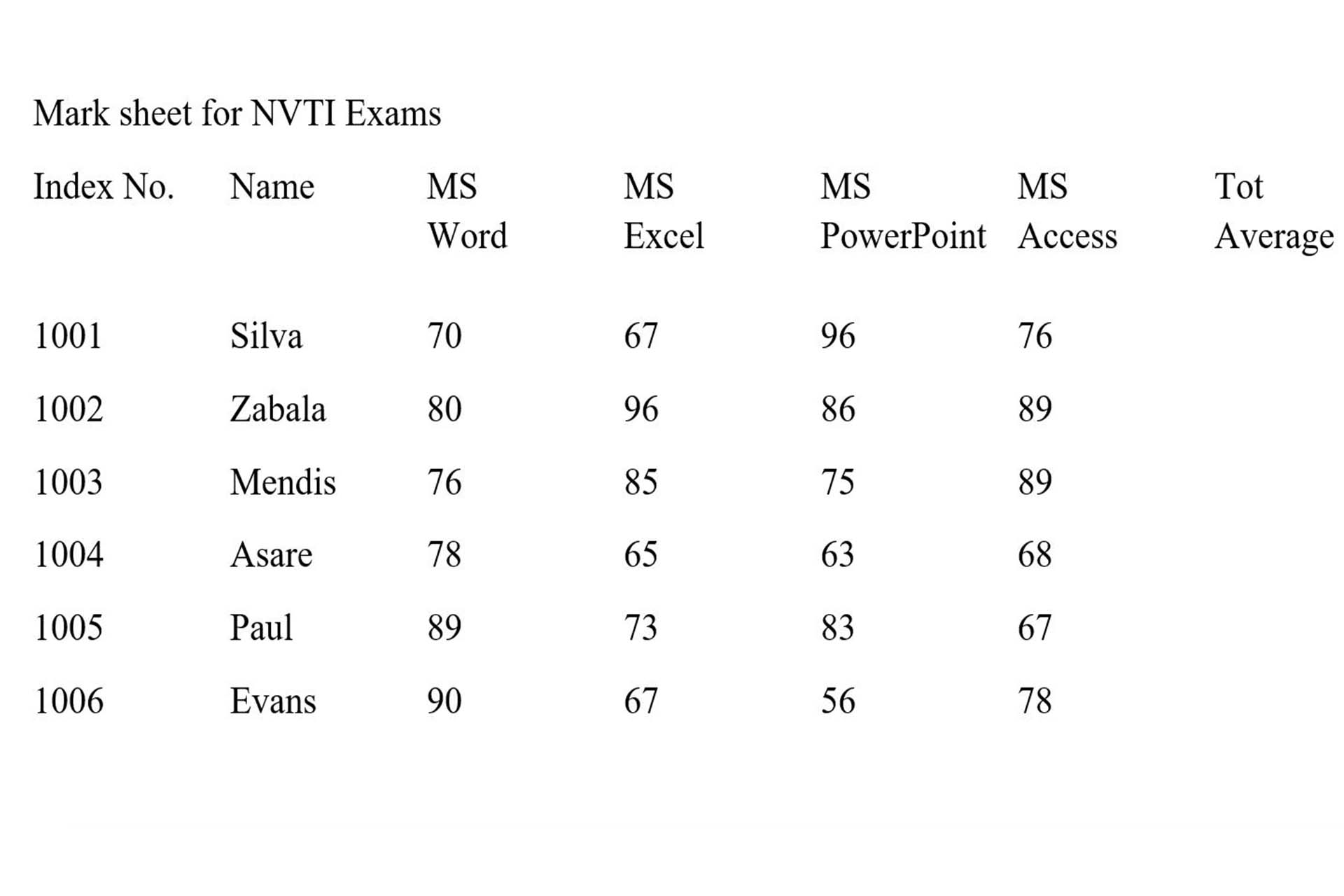
Instructions
1. Bold and center the heading of each column.
2. Center the main heading which is DAVECOS IT SOLUTION PROVIDER and make the text bold by changing the font size 16 for main title and 14 for subtitle (mark sheet for NVTI Exams).
3. Calculate the total mark for each software application.
4. Calculate the average for each software application.
5. Insert your index number and full name in the center of the footer.
6. Using the name and total marks, insert a line chart and title it DAVECOS I.T. Bolden the title with a font size, 22 and a font style, “CASTELLAR”.
Let's look at how to do that practically
Download Full Question Set
Click here to downloadthe full May/June 2024 Level 2 Spreadsheet Management Past Questions.. Print it out and practice at your convenience!