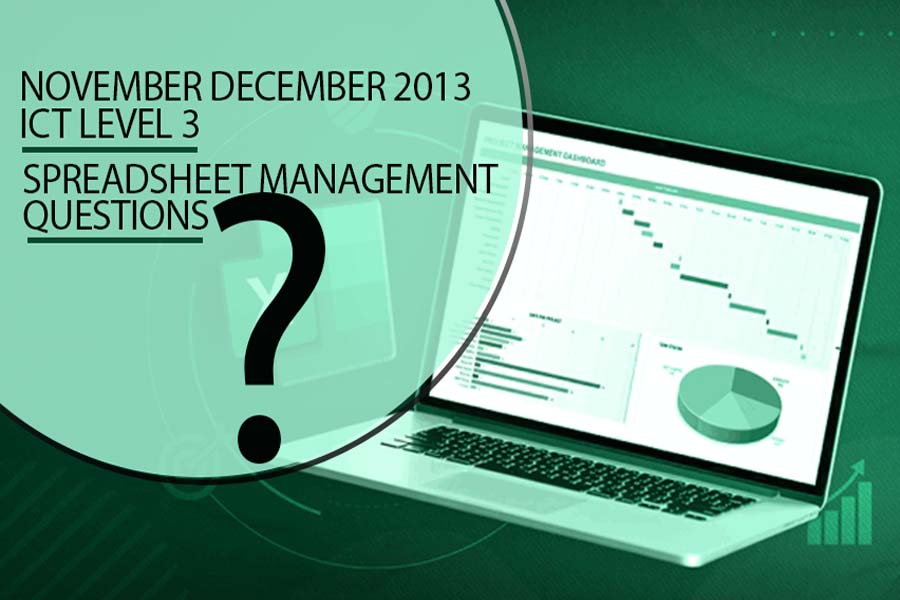
Are you preparing for your ICT Level 3 exams and looking to excel in Spreadsheet Management? Armstrong Computers is here to help you achieve your goals. We've compiled the past questions from November/December 2013, complete with answers, to assist you in your studies. These resources can be accessed on both your phone and computer, making it convenient for you to learn and practice anytime, anywhere.
Why Use Past Questions?
Understand Exam Format: Familiarizing yourself with past questions helps you understand the structure and format of the exam.
Identify Key Topics: Past questions highlight important topics and areas that are frequently tested, helping you focus your study efforts.
Practice Application: Applying your knowledge to past questions improves your practical skills and prepares you for the types of tasks you will encounter in the exam.
Self-Assessment: Comparing your answers with the provided solutions allows you to assess your understanding and identify areas for improvement.
Access and Download Past Questions
To help you prepare effectively, we've made the past questions and answers for Spreadsheet Management, ICT Level 3, November/December 2013, easily accessible. Simply click on the links below to view and download the questions and answers:
Download Past Questions and Answers
Study On-the-Go
Our resources are designed for easy access on both your mobile phone and computer. Whether you're on the move or sitting at your desk, you can conveniently study and practice:
- Theory Questions: Click on each question to reveal the answers and understand the concepts behind them.
- Practical Exercises: Download and solve the practical exercises to hone your spreadsheet management skills.
How to Use the Resources
- View Questions and Answers: Click on the past questions link to display each question along with its corresponding answer.
- Download for Offline Practice: Download the entire set of questions and answers for offline use, allowing you to practice and revise at your convenience.
- Solve and Review: Attempt to solve the questions on your own before reviewing the answers to gauge your understanding and progress.
INFORMATION AND COMMUNICATION TECHNOLOGY QUESTIONS
NOVEMBER DECEMBER 2013
ICT LEVEL 3
SUBJECT: SPREADSHEET MANAGEMENT
SECTION A
Answer all questions.
Examples Of Ribbons In MS Excel
- Home: Contains commonly used commands for formatting, editing, and manipulating data.
- Insert: Provides commands for inserting objects such as charts, tables, and shapes into the worksheet.
- Formulas:Contains functions, formulas, and tools for working with calculations and data analysis.
- Page Layout:Includes commands for adjusting the page setup, printing options, and managing the appearance of the worksheet.
Steps for aligning text and numeric values in MS Excel
- Select the cell(s) containing the text or numeric values.
- In the Home tab on the ribbon, locate the Alignment group.
- Use the alignment options in the group to align the content.
- To align text horizontally, click the appropriate alignment buttons (left-align, center-align, right-align).
- To align text vertically, click the alignment buttons (top-align, middle-align, bottom-align).
- To align numeric values within a cell, use the Increase Indent or Decrease Indent buttons.
Filtering and sorting are both data manipulation techniques in MS Excel, but they serve different purposes:
- Filtering: Filtering allows you to display specific data based on certain criteria.
It hides rows that do not meet the specified criteria, allowing you to focus on relevant data.
Filtered data can be customized and sorted within the filtered range, but the original data remains unchanged.
- Sorting:arranges data in a specific order, such as alphabetical, numerical, or chronological.
It rearranges the entire dataset based on the selected column or columns.
Sorting can be done in ascending or descending order, and it permanently changes the order of the data.
The "IF function" in MS Excel is a logical function that allows you to perform conditional evaluations and return different results based on specified criteria.
the syntax:
=IF(logical_test, value_if_true, value_if_false)
It is the basic unit where you enter and manipulate data. Each cell is uniquely identified by its column letter and row number.
For example,
cell A1 refers to the cell in the first column and first row of the worksheet.
Three commands in the Formula Auditing group under the Formulas ribbon in MS Excel are:
- Trace Precedents:This command displays arrows that trace the cells referenced by the active cell.
It helps identify the cells that are used as input or contribute to the formula in the active cell.
Clicking on "Trace Precedents" will show arrows pointing from the active cell to its referenced cells. - Trace Dependents:This command displays arrows that trace the cells that depend on the value of the active cell.
It helps identify the cells that are affected by changes in the value of the active cell.
Clicking on "Trace Dependents" will show arrows pointing from the active cell to the cells that depend on it. - Evaluate Formula:This command allows you to step through the evaluation of a formula, displaying the intermediate results at each step.
It is particularly useful for complex formulas to understand how the calculations are performed.
Clicking on "Evaluate Formula" opens the Evaluate Formula dialog box, where you can analyze the formula step by step.
Steps for removing gridlines from a worksheet are
- Open the worksheet in Excel.
- Go to the View tab on the ribbon.
- In the Show/Hide group, uncheck the "Gridlines" option.
- The gridlines will be hidden, providing a cleaner view of the worksheet.
To display the formula for an active cell in MS Excel, you can use one of the following methods:
- Press the Ctrl + ` (grave accent) shortcut key. This key is usually located to the left of the numeric 1 key on the keyboard.
- Alternatively, you can go to the Formulas tab on the ribbon and click on the "Show Formulas" button in the Formula Auditing group. This will toggle the display between the actual formula and the calculated value in the active cell.
Armstrong Computers: Your Partner in Success
Armstrong Computers is committed to providing high-quality educational resources to help you succeed in your studies. Here’s why we are the best choice for your computer training needs:
- Expert Instruction: Learn from experienced instructors who are dedicated to your academic success.
- Comprehensive Resources: Access a wide range of study materials and past questions to aid your preparation.
- Flexible Learning: Study at your own pace and convenience with resources available on multiple devices.
- Supportive Environment: Join a community of learners and educators who are here to support you every step of the way.
Get in Touch
If you have any questions or need further assistance, please don't hesitate to reach out. Use the comment section below to share your queries or difficulties, and our expert instructors will provide the guidance you need.
Start your preparation for the ICT Level 3 exam with Armstrong Computers. Download the past questions, practice diligently, and reach out for any support you need. Together, let's achieve academic excellence in Spreadsheet Management!
SECTION B
| NAMES | CLASS TEST | ASSIGNMENT | PRACTICALS | |||
|---|---|---|---|---|---|---|
| MARKS | 20% | MARKS | 15% | MARKS | 25% | |
| MAKWIRO | 73 | - | 89 | - | 90 | - |
| GORONGA | 74 | - | 75 | - | 85 | - |
| BANGO | 77 | - | 70 | - | 80 | - |
| MAKAHA | 55 | - | 66 | - | 75 | - |
| MEKI | 60 | - | 70 | - | 60 | - |
| MAPHOSA | 85 | - | 40 | - | 75 | - |
| LIMA | 63 | - | 53 | - | 75 | - |
| DAUDI | 75 | - | 70 | - | 59 | - |
| AVERAGE | ||||||
| HIGHEST | ||||||
| LOWEST | ||||||
| TOTAL | ||||||
- Using a spreadsheet package you have learnt, type the above mark sheet.
- Calculate the missing figures and complete the worksheet.
- Insert a column bar chart for the test columns.
- Save the worksheet & print it.